Your phone photos may not be as safe as you think. A spilled coffee, a lost device, or a hacked account can erase years of memories in seconds. Learn how cloud backups keep your family’s moments safe, organized, and easy to share.
The Hidden Risks of Keeping Photos Only on Your Phone
Your phone camera is a memory machine, but relying on a single device is a fragile plan. Even in the U.S., where carriers and manufacturers offer repairs and replacements, photos stored only on a handset can disappear without warning. Common risks include:
- Loss, theft, or damage: A misplaced phone, smash on the sidewalk, or a quick theft at a busy event can end your photo archive instantly.
- Hardware failure: Batteries swell, storage chips fail, and logic boards die—often without recoverable warning signs.
- Malware and account lockouts: A compromised device or forgotten passcode can block access, and bad actors may wipe data.
- Accidental deletion: Cleaning storage on a rushed day or a curious child tapping “Delete” can remove hundreds of photos before you notice.
- Natural disasters: Wildfires, hurricanes, and floods can take a device and its contents in minutes.
A single point of failure—your phone—means a single mistake or mishap can erase your family history. That’s why experts recommend a 3-2-1 strategy: three copies of your data, on two different types of storage, with one off-site. Cloud photos satisfy the “off-site” requirement automatically, giving you geographic redundancy and continuous syncing.
How Cloud Storage Is Helping Families Protect Memories
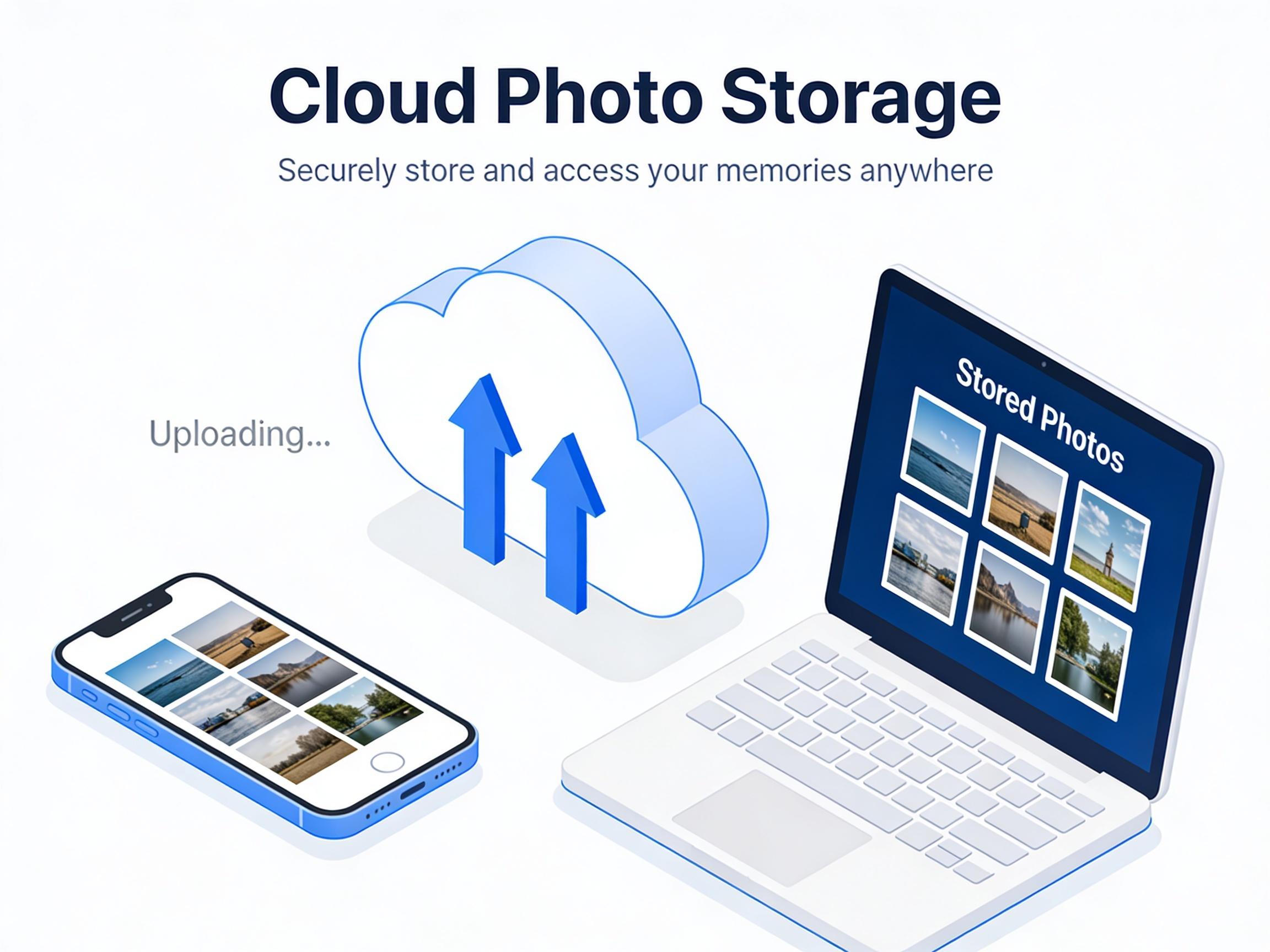
Cloud photo services quietly back up new shots moments after you take them, over Wi‑Fi or cellular data, and make them available on tablets, laptops, and smart TVs at home. For American families juggling school events, sports, and travel, automation is everything—no cables, no reminders, no missed weekends.
Key ways cloud storage helps:
- Automatic, real-time backups: Snap a photo at the park; it’s already safe in the cloud by the time you reach the car.
- Shared albums and family libraries: Collaborate with a spouse or grandparents, and ensure everyone sees the latest milestones.
- Face/object search and curation: Quickly find “beach 2022,” “pumpkin patch,” or a relative by name for prints and gifts.
- Cross-platform access: iPhone in your pocket, Windows laptop at work, Android tablet in the kitchen—all stay in sync.
- Disaster resilience: Even if your phone is gone, your photos aren’t—log in from any browser to recover them.
When cloud backup runs in the background, it eliminates the stress of manual transfers. Families spend more time living moments and less time worrying whether they’ve saved them.
Popular Secure Photo Backup Options and Typical U.S. Pricing
Below are widely used services and representative prices. Plans change; always verify current offers and promotions.
| Service | Plan & Storage | Typical Price (USD) |
|---|---|---|
| Google One | 200 GB | $2.99 per month |
| Google One | 2 TB | $9.99 per month |
| Apple iCloud+ | 200 GB | $2.99 per month |
| Apple iCloud+ | 2 TB | $9.99 per month |
| Microsoft OneDrive | 100 GB | $1.99 per month |
| Microsoft 365 Personal | 1 TB (includes apps) | $69.99 per year |
| Amazon Photos (Prime) | Unlimited photos, 5 GB video | $14.99 per month |
| Dropbox Plus | 2 TB | $11.99 per month |
| Flickr Pro | Unlimited photos | $8.25 per month (annual) |
| iDrive Photos | Unlimited photos & videos | $9.95 first year |
| Shutterfly | Unlimited photo storage | $0 (with account) |
What to Look for in a Secure Photo Backup Service
Before you commit, compare services based on privacy, reliability, and ease of use. Focus on:
- Encryption strength: Look for encryption in transit (TLS) and at rest. For the strongest privacy, consider services that offer optional end‑to‑end or client‑side encryption for photo libraries or vaults.
- Account security: Require two‑factor authentication (2FA) or passkeys. Strong login protection prevents attackers from walking into your library.
- Family sharing and roles: Family plans should let you share storage while keeping private albums private. Granular permissions matter.
- Automatic uploads and background sync: A great service backs up without you thinking about it, on Wi‑Fi or cellular with configurable limits.
- File fidelity and metadata: Originals should remain uncompressed (or offer a “store originals” setting), preserving EXIF, HEIF/RAW, and Live Photos where applicable.
- Restore and export tools: You should be able to download everything in bulk and move to another platform if you ever change your mind.
- Search and organization: AI search, face grouping, and albums save time. Check accuracy and control settings for faces and map data.
- Transparent pricing and clear limits: Understand storage caps, video quotas, and any throttling or inactivity rules.
- Vendor stability and support: Prefer well-supported providers with clear U.S. support channels and a track record of reliability.
Security and Phishing Tip: Watch the Word “Your”
Phishing emails that target photo accounts often twist language—especially “your” versus “you’re.” If a message says “You’re account is locked” or misuses common words, treat it as a red flag. Sharpen your eye with these resources:
- Merriam‑Webster definition of “your”
- Grammarly: “Your” vs. “You’re”
- Cambridge Dictionary entry for “your”
- Community discussion on “your” vs. “you’re”
- Video on pronouncing “your”
When in doubt, don’t click links in emails. Instead, go directly to the provider’s official app or type the site address yourself.
Quick Setup Checklist: Safeguard Your Camera Roll Today
Use this no‑nonsense sequence to protect your photos in minutes:
- Pick a provider and plan: Choose a storage tier with headroom (at least 20–30% more than your current library) so new photos upload without hitting a cap.
- Enable auto backup: On iPhone, turn on iCloud Photos or install Google Photos and toggle Backup. On Android, use Google Photos or your chosen app’s auto‑upload setting.
- Turn on 2FA or passkeys: Secure the account via the security/settings menu; store recovery codes in a password manager.
- Set Wi‑Fi/cellular rules: Decide whether to back up on cellular, and whether to include videos immediately or on Wi‑Fi only.
- Let the first sync finish: Keep the app open and the device charging overnight; the initial upload can take hours for large libraries.
- Test a restore: From a browser, download a handful of recent photos to confirm you can retrieve your memories fast.
- Create shared albums: Add a family library or shared album for events; keep sensitive items in private albums.
- Schedule check‑ins: Every few months, confirm backups are current and storage isn’t near capacity.
Common Mistakes to Avoid
- Relying on “recently deleted” as a backup: That’s a temporary trash bin, not protection. Once it empties, the photos are gone.
- Assuming messages are safe: Photos inside SMS or chat apps may not be in your camera roll or cloud—save them explicitly.
- Using only one account for a whole household: Separate accounts with a shared family plan protect privacy and reduce accidental deletions.
- Ignoring login recovery: Without recovery methods (trusted numbers, codes), you could lock yourself out of your own memories.
- Storing only “optimized” copies locally: Optimization saves space but can confuse exports; ensure originals exist in the cloud or on a secondary drive.
Bottom Line
Your phone is a phenomenal camera but a fragile archive. Cloud backup adds the missing layer of resilience, making your memories durable, searchable, and easy to share with family anywhere in the U.S. Choose a trustworthy provider, enable strong account security, let automatic uploads do the work, and verify you can restore what matters. Your photos deserve more than a single point of failure—give them the safety net that cloud photos provide.